Allgemeine Informationen / General Information #
Die Zwei-Faktor-Authentifizierung (2FA) erhöht die Sicherheit Ihres Kontos erheblich. Selbst wenn ein Angreifer Ihr Passwort erfährt, ist ein Login ohne den zweiten Faktor nicht möglich. In dieser Anleitung erfahren Sie, wie Sie Ihr Unikonto mit einem zweiten Faktor absichern.
Two-factor authentication (2FA) significantly increases the security of your account. Even if an attacker discovers your password, they won’t be able to log in without the second factor. In this guide, you’ll learn how to secure your university account with a second factor.
Einrichtung / Setup #
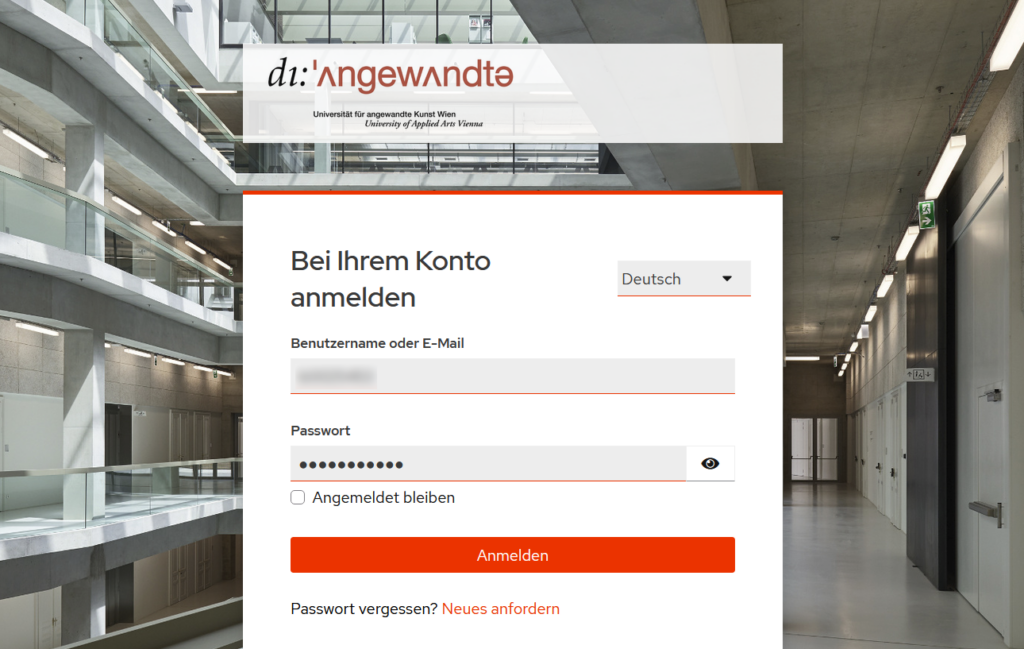
Rufen Sie die Webseite https://id.uni-ak.ac.at auf. Loggen Sie sich dort mit Ihrer p-Nummer oder Ihrer E-Mail und Ihrem dazugehörigen Passwort ein.
Open the website https://id.uni-ak.ac.at. Log in there using your p-number or your email address and the corresponding password.
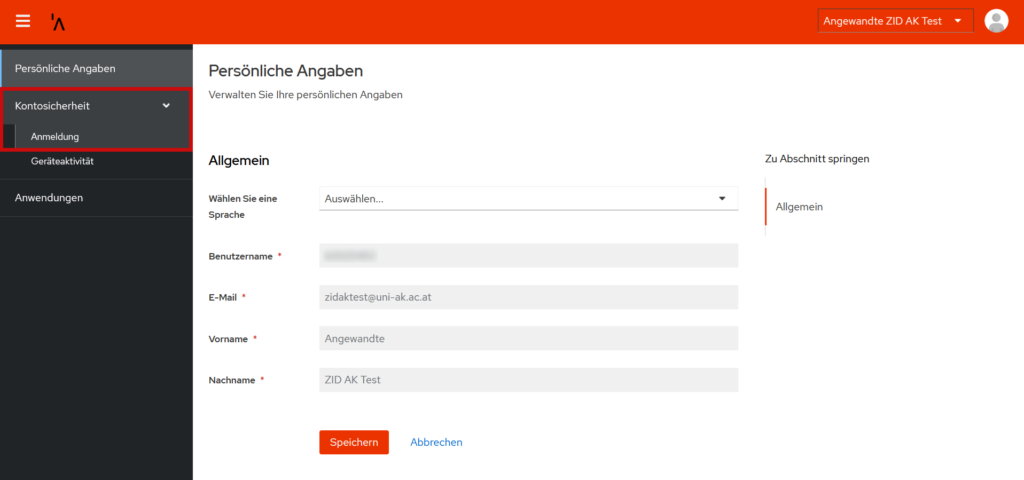
Nun sollten Sie folgendes Fenster sehen. Klicken Sie Links auf Kontosicherheit -> Anmeldung.
You should now see the following window. On the left, click Account security -> Signing in.
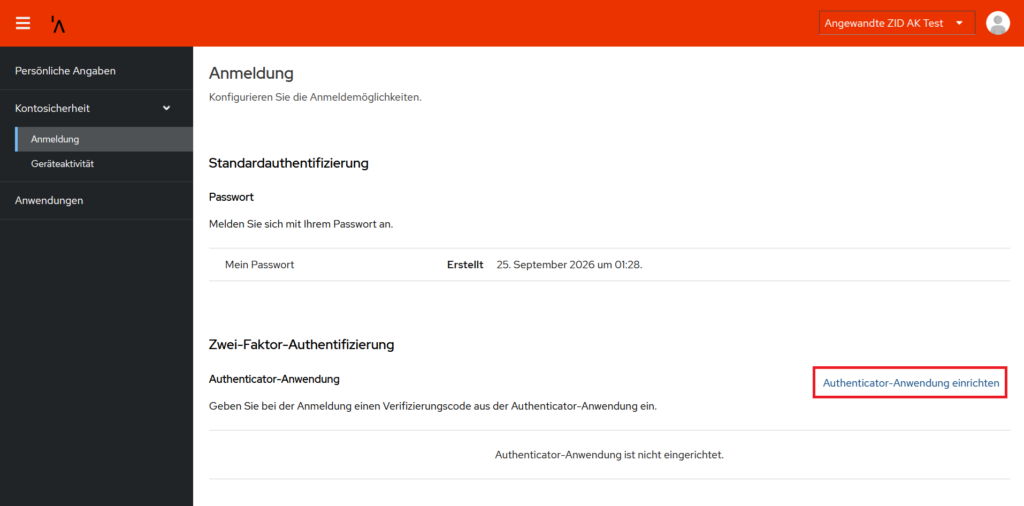
Klicken Sie im folgenden Fenster unten rechts auf “Autheticator-Anwendung hinzufügen”.
In the window that appears, click “Set up Authenticator application” in the lower-right corner.
Anschließend müssen Sie erneut Ihre Zugangsdaten eingeben um den Prozess fortzusetzen.
You will then need to re-enter your login credentials to continue the process.
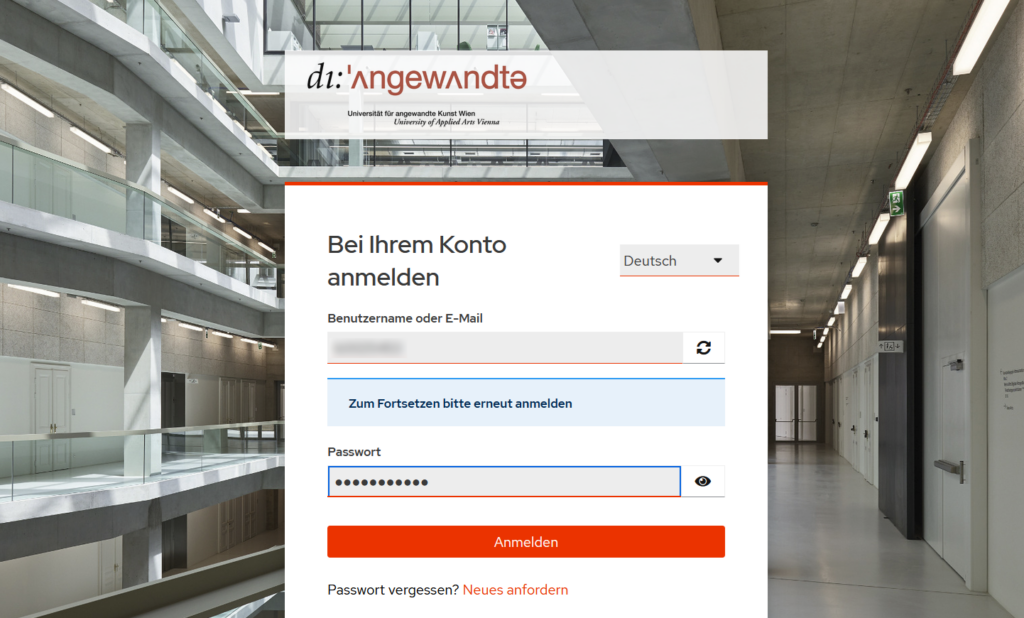
Im nächsten Schritt werden Sie dazu aufgefordert den angezeigten QR-Code mit einer Authenticator-App Ihrer Wahl zu scannen. Sie können dafür zum Beispiel den Ente-Authenticator verwenden.
Nachdem der QR-Code gescannt wurde geben Sie bei Punkt 3 den Code ein, den Ihre Authenticator-App anzeigt. Darunter können Sie einen Gerätenamen eintragen, zum Beispiel den Namen der Authenticator App. Klicken Sie anschließend auf “Absenden”.
HINWEIS: Sollten Sie kein Diensthandy/Smartphone haben oder nicht Ihr privates Handy verwenden wollen, dann klicken Sie auf “Sie können den QR-Code nicht scannen?” Die Anleitung für die Einrichtung ohne Smartphone finden Sie HIER.
In the next step, you’ll be prompted to scan the QR code displayed using an authenticator app of your choice. For example, you can use the Ente Authenticator.
After the QR code has been scanned, enter the code displayed by your Authenticator app in Step 3. Below that, you can enter a device name, such as the name of the Authenticator app. Then click “Submit”.
NOTE: If you do not have a work cell phone or smartphone, or if you do not want to use your personal cell phone, click on “Unable to scan?” You can find the instructions for setting up 2FA without a smartphone HERE.
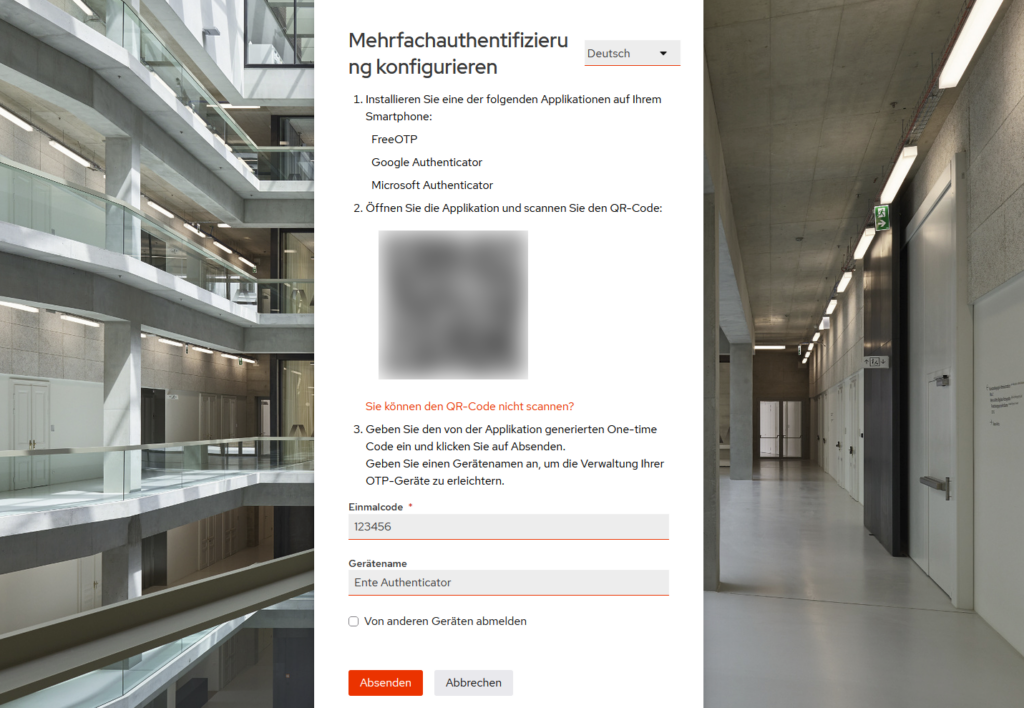
Wenn der zweite Faktor erfolgreich eingerichtet wurde, werden Sie wieder zu Ihrem Profil weitergeleitet. Die eingerichtete App scheint nun unterhalb beim Punkt Zwei-Faktor-Authentifizierung auf.
Once two-factor authentication has been successfully set up, you will be redirected back to your profile. The app you set up will now appear under “Two-factor authentication”.
Einrichtung ohne Smartphone / Setup without a Smartphone #
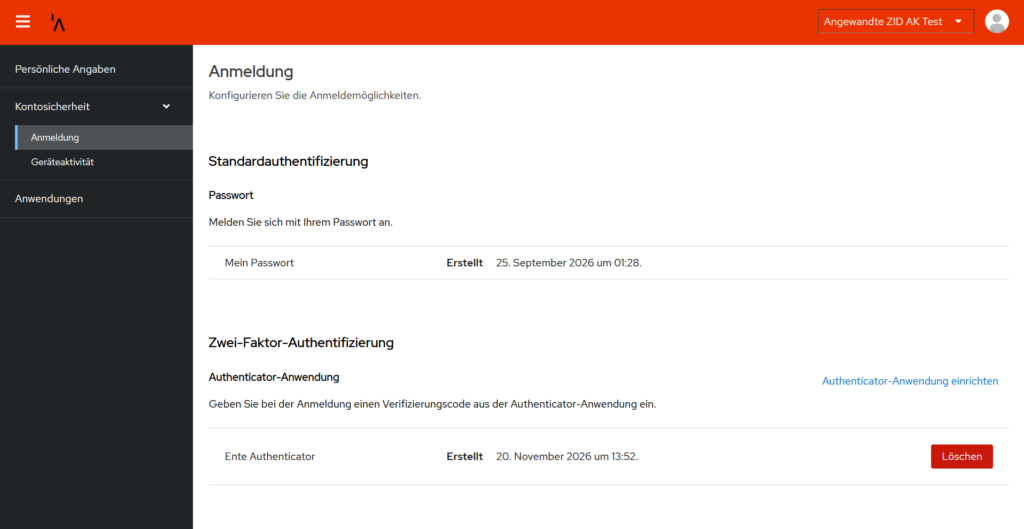
Wenn Sie die Option “Sie können den QR-Code nicht scannen?” auswählen, dann erscheint folgendes Fenster. Hier finden Sie Ihren persönlichen Schlüssel, welchen Sie in Ihrem Authenticator eingeben müssen.
Anschließend geben Sie bei Punkt 3 den Code ein, den Ihr Authenticator anzeigt. Darunter können Sie einen Gerätenamen eintragen, zum Beispiel den Namen der Authenticator App. Klicken Sie anschließend auf “Absenden”.
If you select the option “Unable to scan?”, the following window will appear. Here you’ll find your personal key, which you’ll need to enter into your authenticator.
Next, in Step 3, enter the code displayed by your authenticator. Below that, you can enter a device name. For example, the name of the authenticator app. Then click “Submit”.
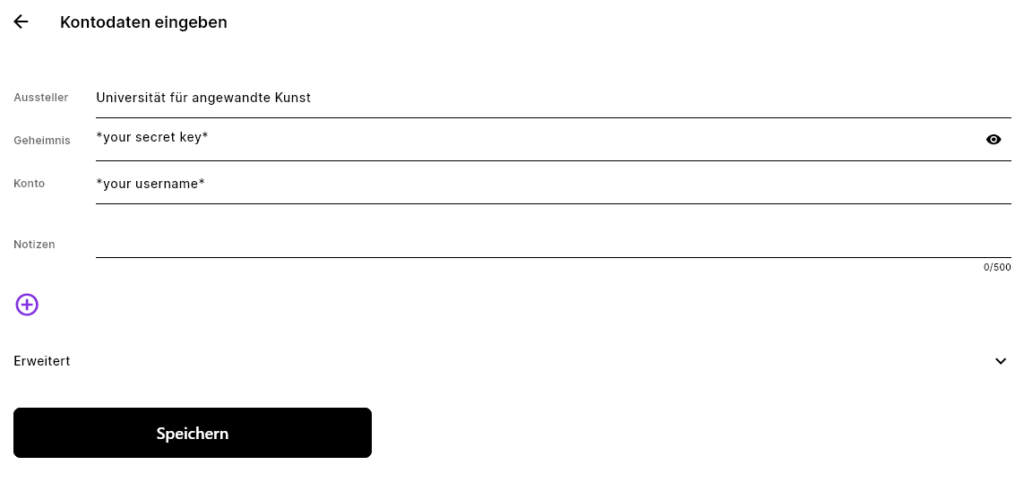
Hier ist ein Beispielbild, wie die Informationen im Ente Authanticator eingetragen werden.
Here is an example image showing how to enter the information into the Ente Authenticator.