Zwei-Faktor-Authentifizierung / Two-Factor Authentication #
Die Zwei-Faktor-Authentifizierung ist eine Sicherheitsmethode, bei der Sie zwei verschiedene Nachweise benötigen, um sich bei einem Konto anzumelden. Typischerweise Ihr Passwort sowie einen zusätzlichen Code. Auf diese Weise wird Ihr Konto erheblich sicherer, da selbst bei Diebstahl Ihres Passworts, ohne den zweiten Faktor, kein Zugriff möglich ist.
Der Ente Authenticator ist eine Open-Source 2FA-App, die sich auf Privatsphäre und Sicherheit konzentriert. Der Ente Authenticator bietet zudem durchgehend verschlüsselte Cloud-Backups, sodass Ihre Tokens nicht verloren gehen. Es sind Desktop-Apps für Windows, macOS und Linux verfügbar, sowie Smartphone-Apps für Android und iOS.
Two-factor authentication is a security method that requires two different forms of verification to log in to an account. Typically, this involves your password and an additional code. This makes your account significantly more secure, as even if your password is stolen, access is still impossible without the second factor.
The Ente Authenticator is an open-source 2FA app that focuses on privacy and security. The Ente Authenticator also offers end-to-end encrypted cloud backups, ensuring your tokens won’t be lost. Desktop apps are available for Windows, macOS and Linux, as well as smartphone apps for Android and iOS.
Einrichtung / Setup #
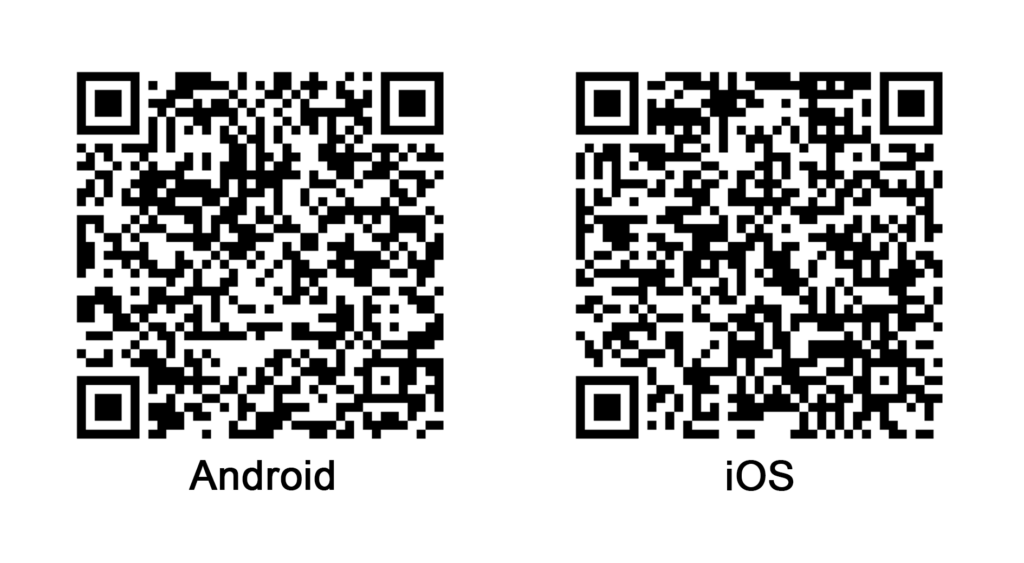
Die Desktop Anwendung vom Ente Authenticator kann auf der offiziellen Webseite heruntergeladen werden. Sollten Sie ein Gerät verwenden, welches vom ZID verwaltet wird, dann wenden Sie sich bitte an den Helpdesk (helpdesk@uni-ak.ac.at). Unterhalb finden Sie QR-Codes für die Smartphone Apps.
The Ente Authenticator desktop application can be downloaded from the official website. If you are using a device managed by ZID, please contact the Helpdesk (helpdesk@uni-ak.ac.at). Below you will find QR codes for the smartphone apps.
Account erstellen / Create an account #
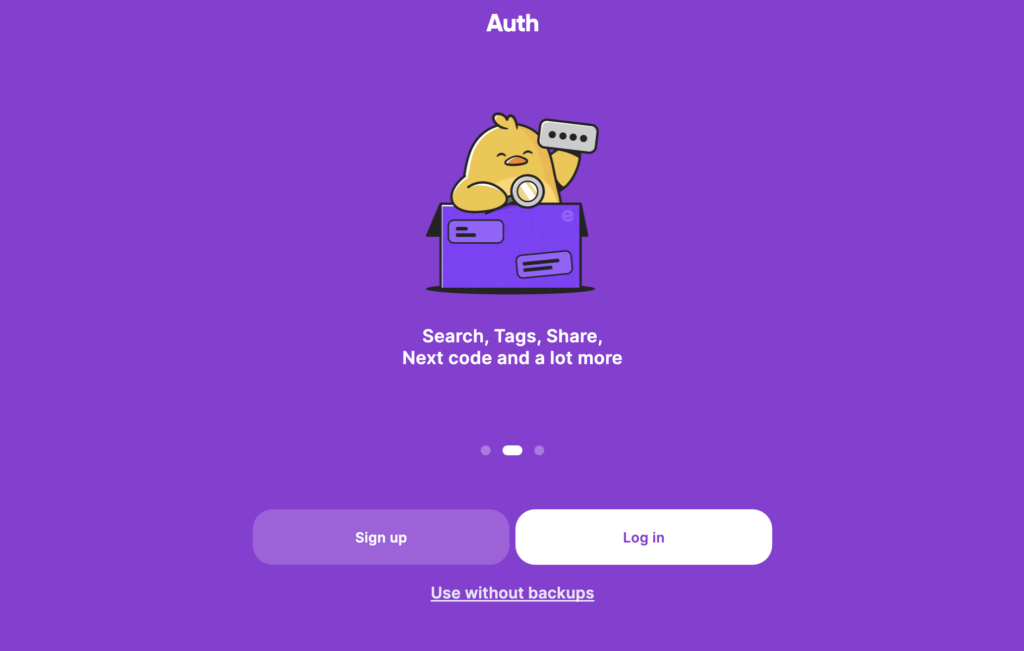
Nach der Installation sollte folgendes Fenster erscheinen. Sollten Sie bereits ein Ente-Konto besitzen, dann loggen Sie sich mit Ihren Zugangsdaten ein. Wenn nicht, dann klicken Sie auf “Registrieren”.
Hinweis: Ente Authenticator kann auch ohne Konto verwendet werden. Die Tokens werden dann lokal auf einem Gerät gespeichert.
After installation, the following window should appear. If you already have an Ente account, log in with your credentials. If not, click on “Sign Up”.
Note: Ente Authenticator can also be used without an account. The tokens are then stored locally on a device.
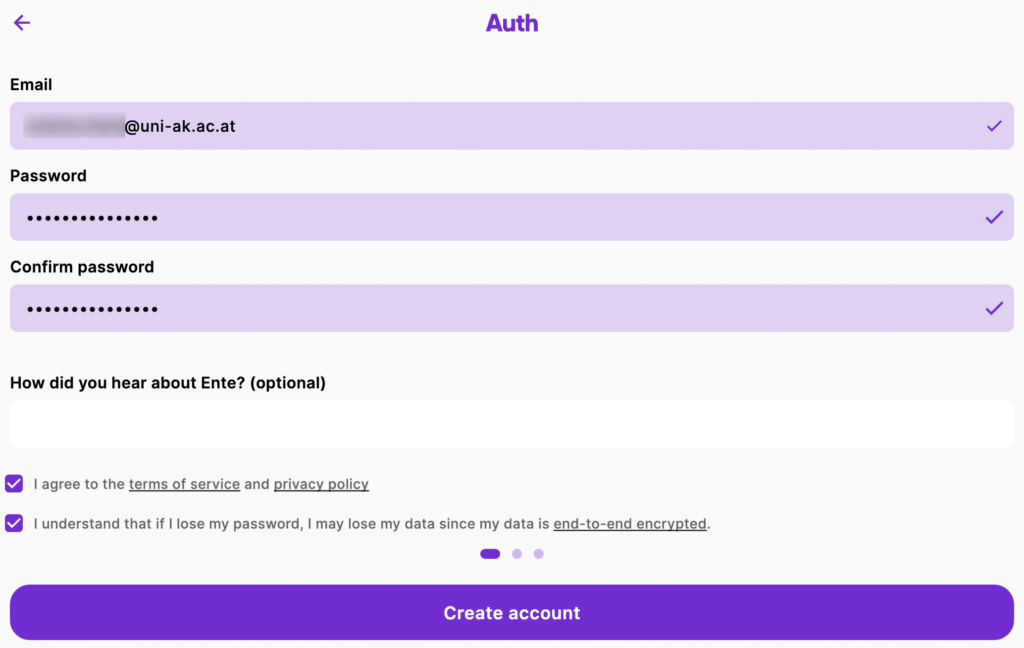
Um ein Konto zu erstellen, geben Sie Ihre E-Mail ein und vergeben Sie ein starkes Passwort. Im nächsten Schritt müssen Sie Ihre Mailadresse verifizieren.
To create an account, enter your email address and choose a strong password. The next step is to verify your email address.
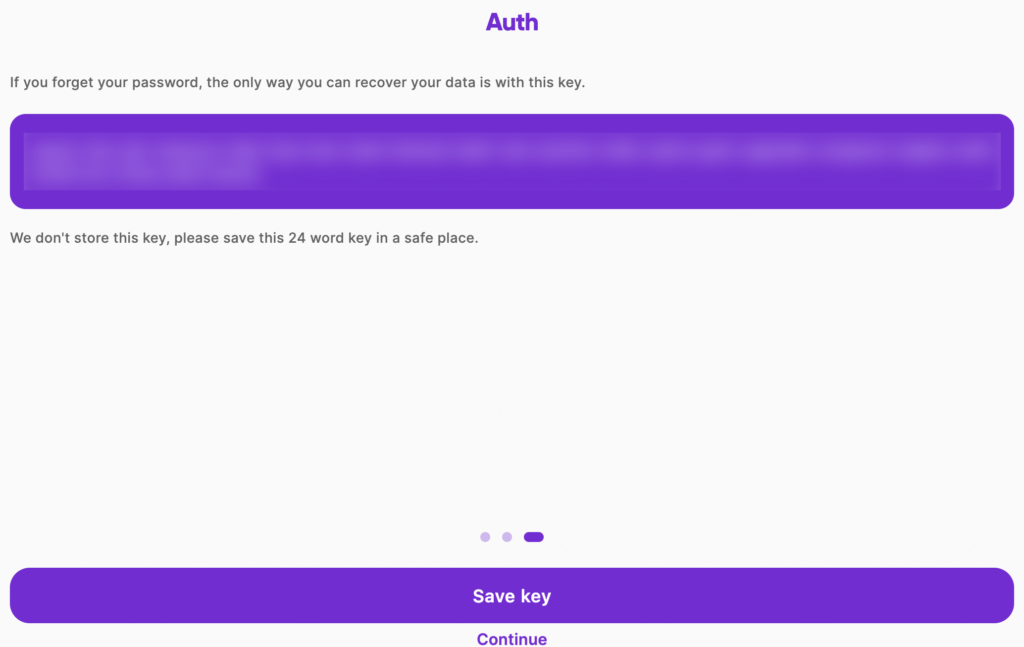
Anschließend wird Ihnen eine Passwortphrase angezeigt. Speichern Sie diesen Schlüssel an einem sicheren Ort ab.
You will then be shown a passphrase. Make sure you keep this key in a safe place.
Tokens erstellen / Create tokens #
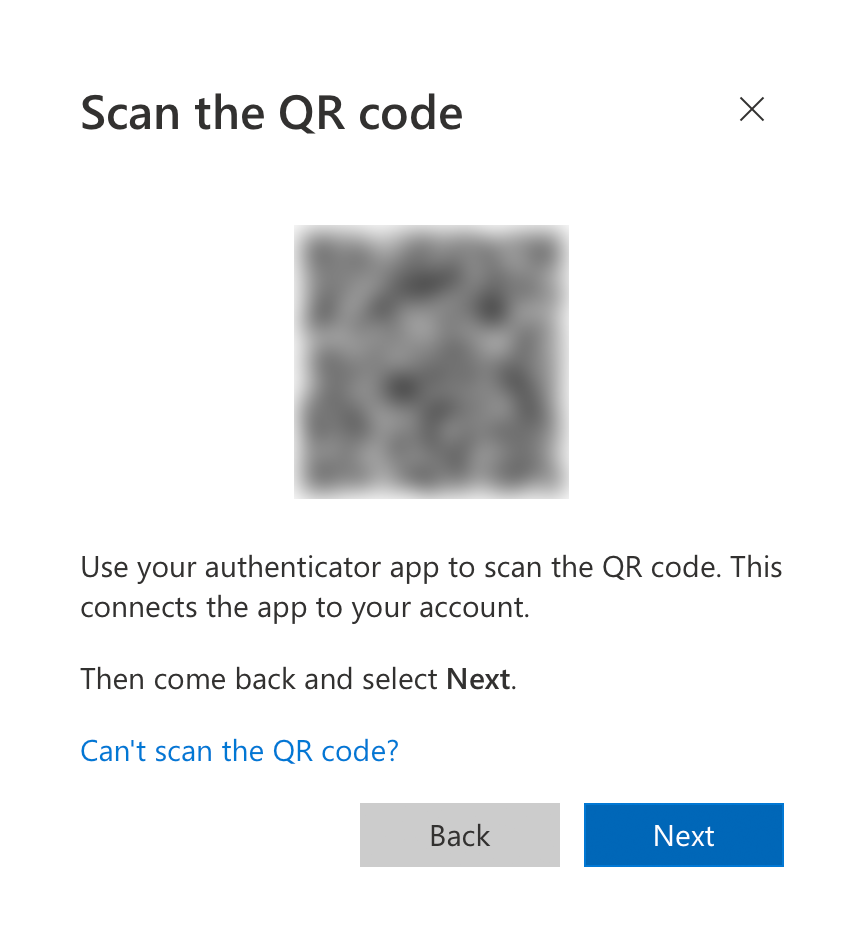
Wenn Sie den Authenticator am Smartphone verwenden, dann kann bei der Einrichtung eines Tokens der angezeigte QR-Code gescannt werden. Bei der Einrichtung mit der Desktopanwendung klicken Sie unten auf “QR Code kann nicht gescannt werden”.
If you are using the Authenticator on your smartphone, you can scan the QR code displayed when setting up a token. If you are setting it up using the desktop application, click on “Can’t scan the QR code?” at the bottom.
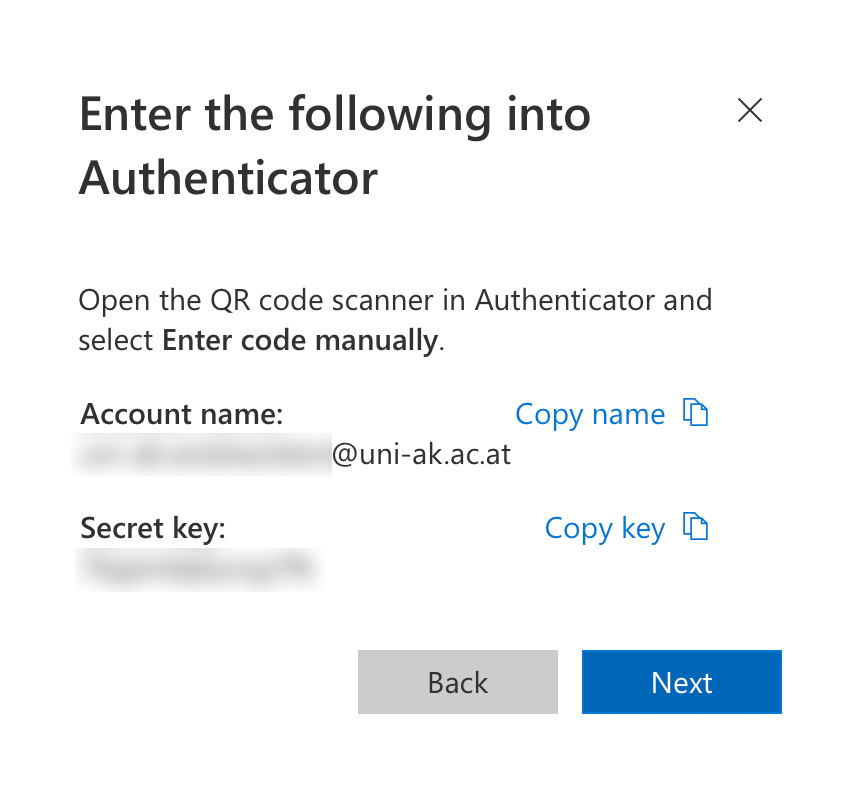
Anschließend wird Ihnen der Accountname und der geheime Schlüssel angezeigt. Kopieren Sie beides in Ihren Authenticator und klicken Sie auf “Weiter”. Sie müssen anschließend den erstellten Code eingeben, damit der zweite Faktor überprüft wird.
You will then be shown the account name and the secret key. Copy both into your Authenticator and click “Next”. You will then need to enter the code generated to verify the second factor.
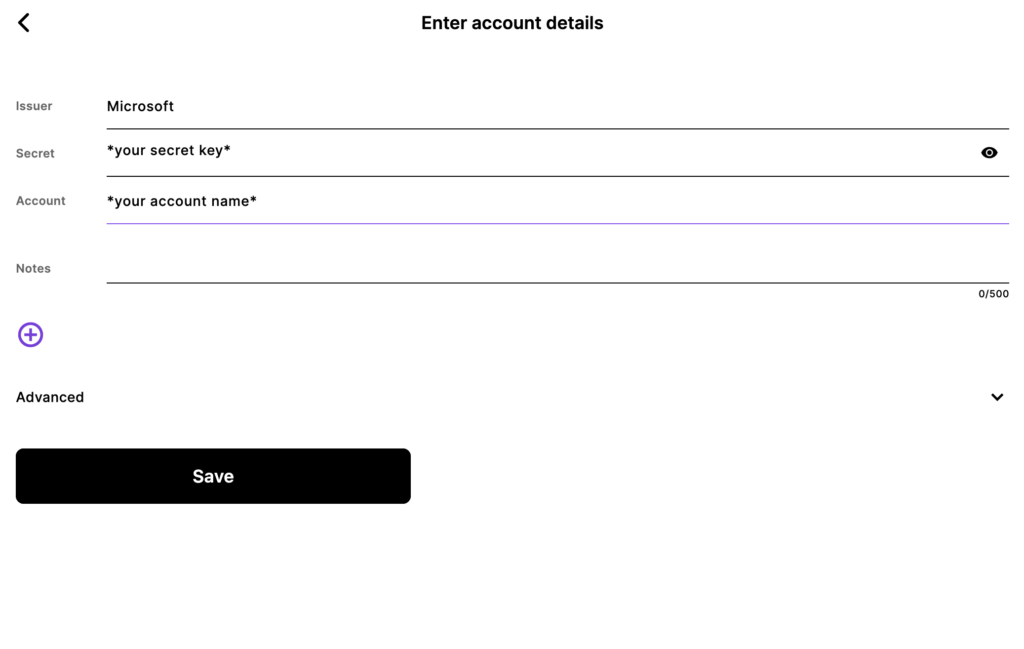
Unterhalb ist ein Beispiel, wie die Informationen eingefügt werden. Klicken Sie anschließend auf “Speichern”.
Below is an example of how to insert the information. Then click “Save”.
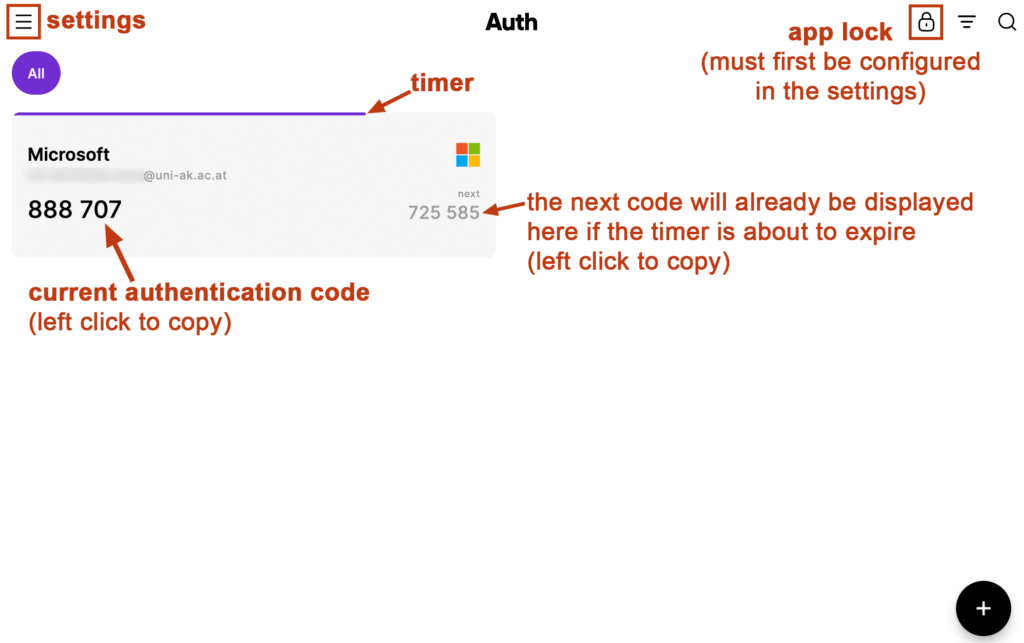
Ihre Codes werden nun im Authenticator angezeigt. Der aktuell gültige Code befindet sich links. Mit einem Linksklick kann der Code in die Zwischenablage kopiert werden. Rechts davon wird bereits der nächste Code angezeigt, sollte der Timer kurz vor dem Ablauf sein. Der Timer befindet sich oberhalb der Codes.
Weiteres kann oben rechts die App gesperrt werden. Die Sperre muss davor in den Einstellungen konfiguriert werden. Die Einstellungen finden Sie links oben. Für die Sperre kann beispielsweise ein Pin oder auch, sofern vorhanden, der Fingerabrucksensor verwendet werden.
Codes are now displayed in the Authenticator. The currently valid code is shown on the left. You can copy the code to the clipboard by left-clicking on it. To the right of this, the next code is already displayed if the timer is about to expire. The timer is located above the codes.
Additionally, the app can be locked in the top-right corner. The lock must first be configured in the settings. You will find the settings in the top left-hand corner. For the lock, you can use a PIN, for example, or, if available, the fingerprint sensor.