
Ab sofort ist für Angestellte und Studierende der Angewandten Microsoft 365 verfügbar.
Microsoft 365 is now available for employees and students of the University of Applied Arts.
Accountaktivierung mittels Authenticator / Account activation via Authenticator #
ACHTUNG: Sollten Sie bereits den Authenticator eingerichtet haben und auf ein neues Handy umsteigen, dann muss zuerst eine weitere Loginmethode mit dem neuen Handy in Ihrem Microsoft Account hinzugefügt werden, bevor die App am alten Handy gelöscht werden kann. Eine Anleitung für das Hinzufügen einer weiteren Loginmethode finden Sie HIER. Ansonsten verlieren Sie den Zugriff auf das Konto und der zweite Faktor muss vom ZID (helpdesk@uni-ak.ac.at) zurückgesetzt werden.
ATTENTION: If you have already set up the Authenticator and are switching to a new cell phone, you must first add another sign-in method using the new cell phone before you can delete the app from your old cell phone. You can find instructions for adding an additional sign-in method HERE. Otherwise, you will lose access to your account, and two-factor authentication will need to be reset by the ZID (helpdesk@uni-ak.ac.at).
Gehen Sie auf www.office.com um sich mit Ihrem Account anzumelden. Geben Sie hierfür zunächst Ihre UNI-AK E-Mailadresse ein (vorname.nachname@uni-ak.ac.at bzw. vorname.nachname@student.uni-ak.ac.at) und klicken Sie auf „Weiter“. Als Passwort verwenden Sie bitte Ihr dazugehöriges p-/s-Nummern-Passwort (Base, Serviceseite, …).
Go to www.office.com to log in with your account. First enter your UNI-AK e-mail address (vorname.nachname@uni-ak.ac.at or vorname.nachname@student.uni-ak.ac.at) and click on “Continue”. Please use your corresponding p-/s-number password (base, service page, …) as your password.

Bei der ersten Anmeldung sollte das Fenster „Weitere Informationen erforderlich“ erscheinen, da ein zweiter Faktor für die Einrichtung notwendig ist. Ein zweiter Faktor dient dazu die Sicherheit bei Ihrem Konto zu erhöhen, weil neben Ihrem Passwort auch noch ein zweites Gerät erforderlich ist, um sich anzumelden. Selbst wenn ein Passwort einem Angreifer bekannt wäre, soll eine unbefugte Anmeldung dadurch verhindert werden. Klicken Sie in diesem Feld auf „Weiter“. Wird dieser Schritt übersprungen, dann werden Sie in spätestens 14 Tagen erneut dazu aufgefordert einen zweiten Faktor einzurichten.
When you log in for the first time, the “More information required” window should appear, as a second factor is required for the setup. A second factor is used to increase the security of your account because a second device is required to log in in addition to your password. Even if a password were known to an attacker, this should prevent unauthorized login. Click on “Next” in this field. If you skip this step, you will be asked to set up a second factor again in 14 days at the latest.

Nun öffnet sich ein weiteres Fenster, in dem Sie dazu aufgefordert werden, den Microsoft Authenticator zu öffnen.
Another window will now open asking you to open the Microsoft Authenticator.

Der Microsoft Authenticator dient dazu Ihr Handy als zweiten Faktor zu verifizieren. Die App ist für Android undiOS verfügbar. Scannen Sie für die erleichterte Installation der App die untenstehenden QR-Codes. Sie werden damit direkt zum jeweiligen App Store verlinkt. Nachdem Sie die App installiert haben, klicken Sie auf „Weiter“. Sollten Sie bereits den Google Authenticator verwenden, dann kann auch dieser für die Einrichtung verwendet werden. Klicken Sie hierfür auf die Schaltfläche „Ich möchte eine andere Authentifikator-App verwenden“.
Alternativ kann auch der Ente Authenticator verwendet werden. Unsere Doku dazu finden Sie HIER.
The Microsoft Authenticator is used to verify your cell phone as a second factor. The app is available for Android and iOS. Scan the QR codes below to make it easier to install the app. You will be linked directly to the respective app store. Once you have installed the app, click on “Next”. If you are already using Google Authenticator, you can also use it for the setup. To do this, click on the “I want to use a different authenticator app” button.
Alternatively, you can use the Ente Authenticator. You can find our documentation on this HERE.

Sie werden nun aufgefordert, Ihr Microsoft-365-Konto der Angewandten der Authenticator-App hinzuzufügen. Klicken Sie auf „Weiter“.
You will now be asked to add your Microsoft 365 account to the Authenticator app. Click on “Next”.
Ihnen sollte nun ein QR-Code am Bildschirm angezeigt werden. Öffnen Sie die Microsoft Authenticator App um diesen zu Scannen. Tippen Sie hierfür beim Hinzufügen eines Accounts auf „QR-Code Scannen“. Sollten Sie den MS Authenticator bereits verwenden, dann fügen Sie einen neuen Account mit Hilfe des „+“ Symbols hinzu.
You should now see a QR code on the screen. Open the Microsoft Authenticator app to scan it. To do this, tap on “Scan QR code” when adding an account. If you are already using MS Authenticator, add a new account using the “+” symbol.
Nachdem der Code gescannt wurde, wird ihnen eine Zahl auf Ihrem Smartphone angezeigt. Diese müssen Sie auf Ihrem PC/Laptop eintippen, um den zweiten Faktor zu verifizieren. Ihr zweiter Faktor ist nun eingerichtet.
After the code has been scanned, a number will be displayed on your smartphone. You must enter this on your PC/laptop to verify the second factor. Your second factor is now set up.
Probleme mit dem Authenticator / Authentication Issues #
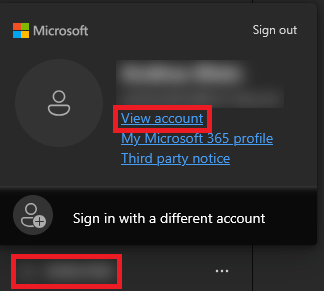
Durch eine fehlerhafte Einrichtung oder den Erwerb eines neuen Telefons kann es zu Problemen mit dem Authenticator kommen. Sollten Sie ein neues Telefon kaufen, dann muss zuerst das neue Handy als zweiter Faktor hinzugefügt werden, bevor das alte Handy gelöscht werden kann. Um eine weitere Anmeldemethode hinzuzufügen melden Sie sich zunächst bei https://www.office.com/ an. Klicken Sie links unten auf Ihren Namen und anschließend auf “Profil anzeigen”.
Incorrect setup or the purchase of a new phone can cause problems with the Authenticator. If you buy a new phone, you must first add the new phone as a second factor before you can remove the old one. To add another login method, first log in at https://www.office.com/. Afterwards click on your name in the bottom-left corner and on “View Account”.
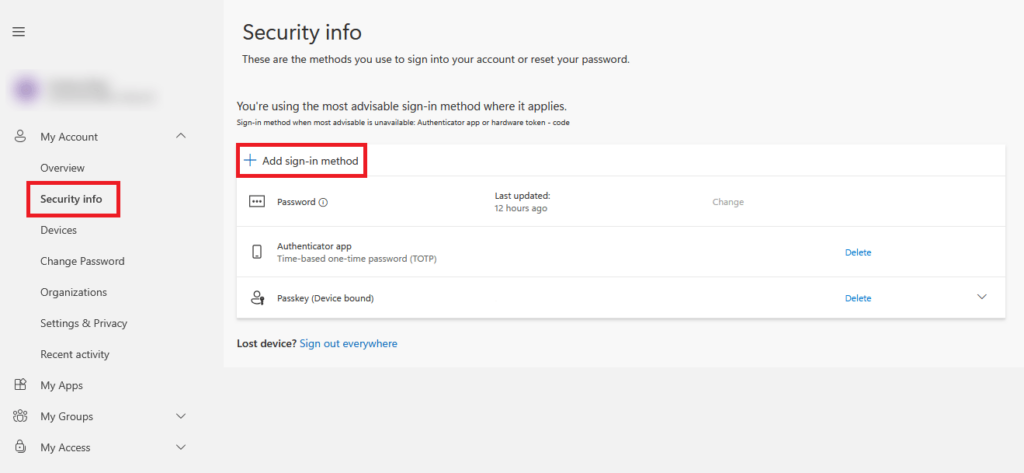
Danach werden Sie auf eine neue Seite weitergeleitet. Klicken Sie nun links auf “Sicherheitsinformationen”. Hier folgt normalerweise eine Abfrage durch den Authenticator. Auf der folgenden Seite werden alle Anmeldeoptionen angezeigt. Beim “+”-Symbol können Sie eine weitere Option hinzufügen. Nachdem das neue Handy hinzugefügt wurde, kann das alte gelöscht werden.
You will then be redirected to a new page. Now click on “Security Info” on the left. You will usually be prompted to enter a code from your authenticator. The following page displays all login options. You can add another option by clicking the “+” icon. Once the new mobile phone has been added, you can delete the old one.
Sollen Sie Probleme mit der Einrichtung oder der Nutzung des Authenticators haben, dann wenden Sie sich bitte an helpdesk@uni-ak.ac.at.
If you have any problems setting up or using the Authenticator, please contact helpdesk@uni-ak.ac.at.