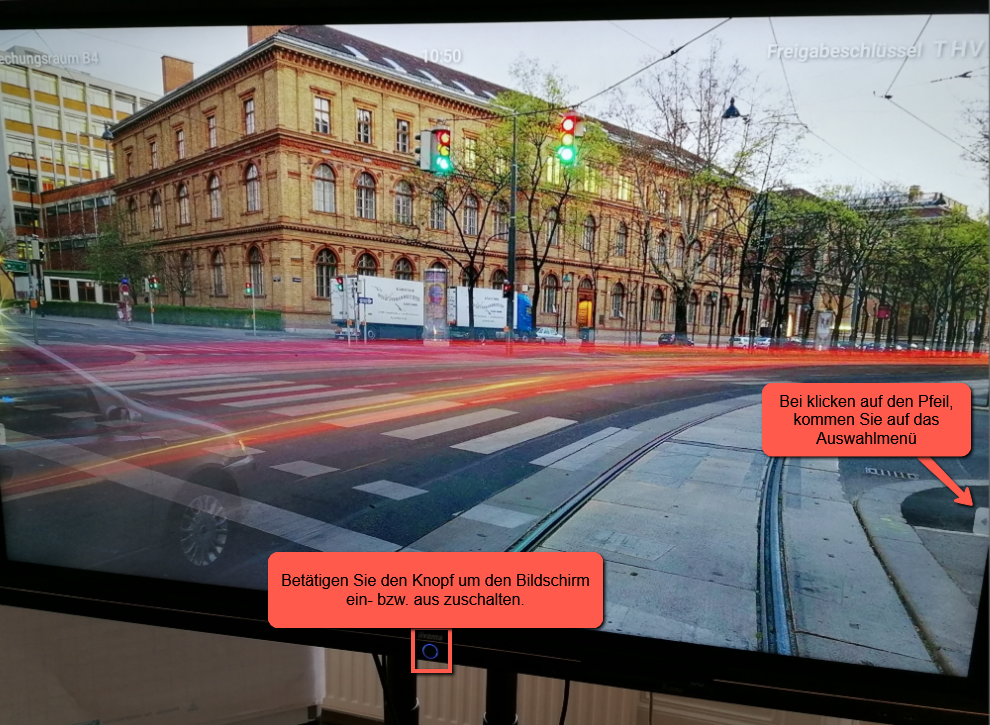
Schalten Sie den Monitor mit Drücken des mittigen runden Knopfes ein (rote LED des Knopfes wechselt auf blau)
Beim Verbinden eines Notebooks mit dem Monitor über HDMI sollte der Monitor automatisch ohne weiteren Angriff die Verbindung erkennen und anzeigen.
Turn on the monitor by pressing the round button in the center (the button’s red LED will turn blue)
When connecting a laptop to the monitor via HDMI, the monitor should automatically detect the connection and display the image without any further action.
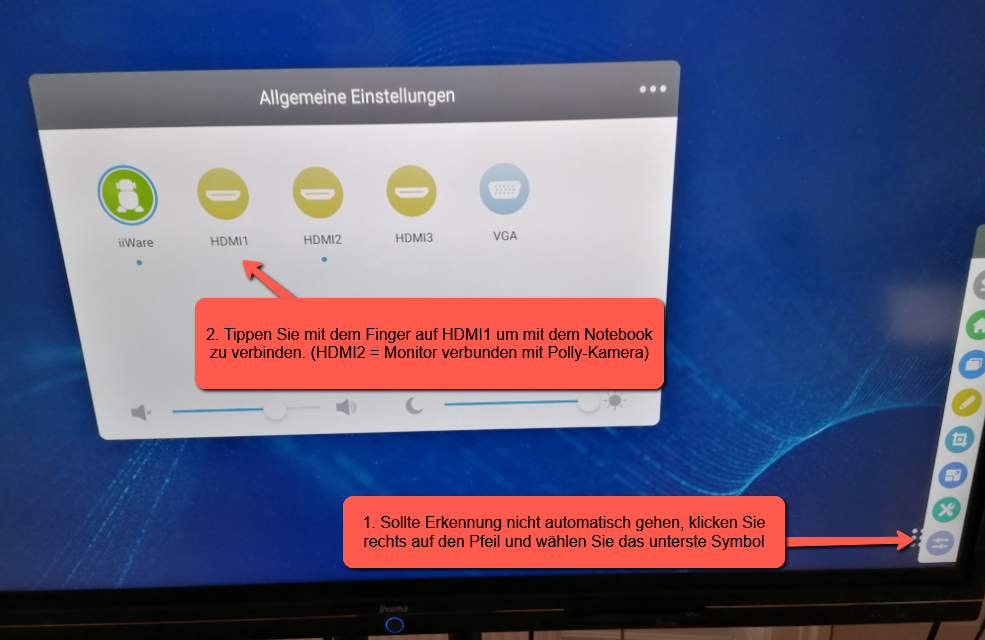
If the laptop isn’t detected automatically, tap the arrow on the right side of the screen and select the bottom icon. A list of various ports will then appear.
Make sure the HDMI cable is connected to both the monitor and your laptop (cable included in B4). Then select HDMI1.
Note: By default, HDMI2 connects the monitor to the Polly camera.
WICHTIGER HINWEIS:
Das Gerät ist bereits mit einem eigenen ZOOM-Benutzeraccount angemeldet.
Dementsprechend ist das Anmelden mit einem anderen ZOOM-Account nicht notwendig
Das Eröffnen bzw. das Beitreten einer Sitzung erfolgt über das Touchpad, welches sich neben dem Monitor befindet.
IMPORTANT NOTE:
The device is already registered with its own ZOOM user account.
Accordingly, it is not necessary to log in with another ZOOM account
You can start or join a meeting using the touchpad located next to the monitor.
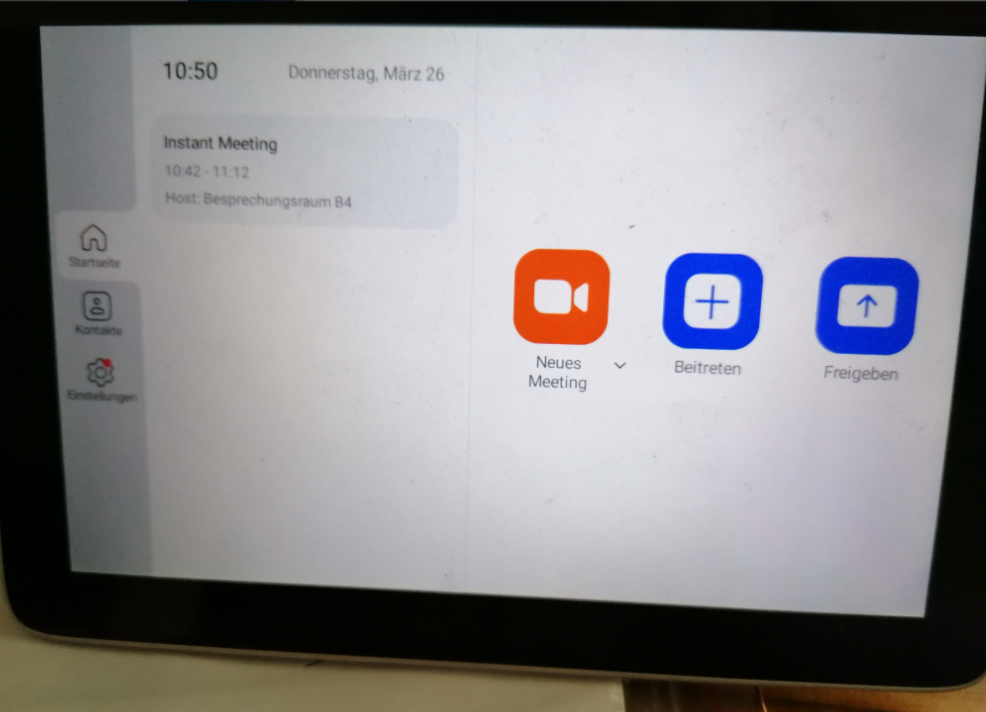
Sie können entweder ein neues Meeting erstellen bzw. Einem beitreten.
You can either create a new meeting or join one.
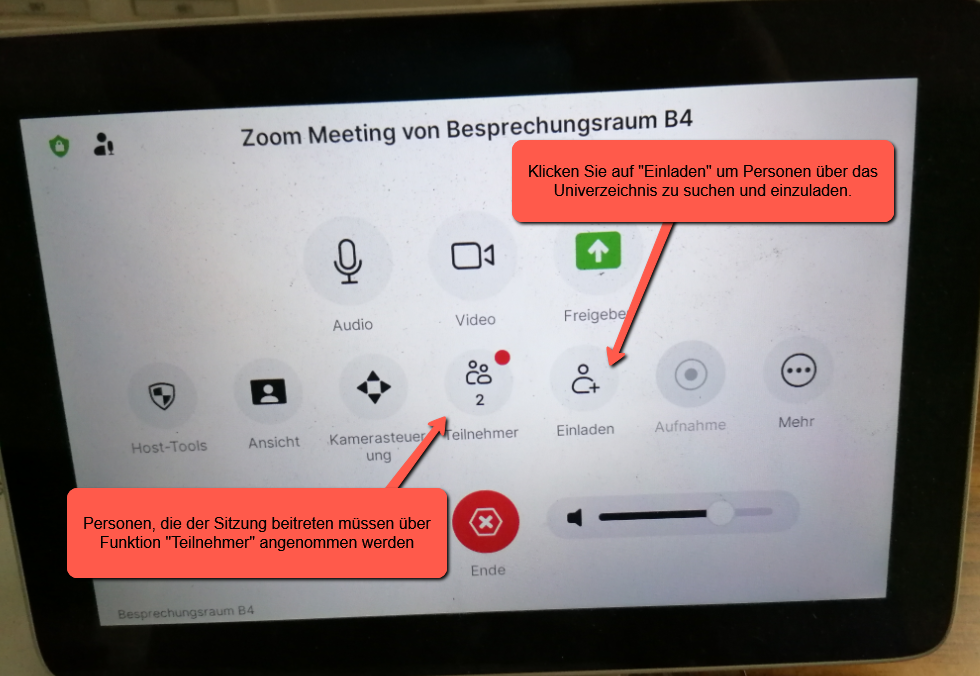
Wenn Sie ein neues Meeting gestartet haben haben, können Sie mit Klicken der Funktion “Einladen” gewünschte Personen einladen. Anschließend müssen Beitretende unter “Teilnehmer” angenommen werden.
Unter “Suche” können Sie nach Personen suchen. Tippen Sie die gewünschten Kontakte an um Sie in die Liste hinzu zufügen. Anschließend drücken Sie rechts oben auf “Einladen”.
Once you’ve started a new meeting, you can invite the people you want by clicking the “Einladen” button. You’ll then need to accept participants under “Teilnehmer”
Under “Suche” you can look for people. Tap the contacts you want to add to the list. Then tap “Einladen” in the top-right corner.

Um sich nun in ein Meeting einwählen zu können, wählen Sie die Person/en direkt über das am Bild angezeigte Unternehmensverzeichnis aus.
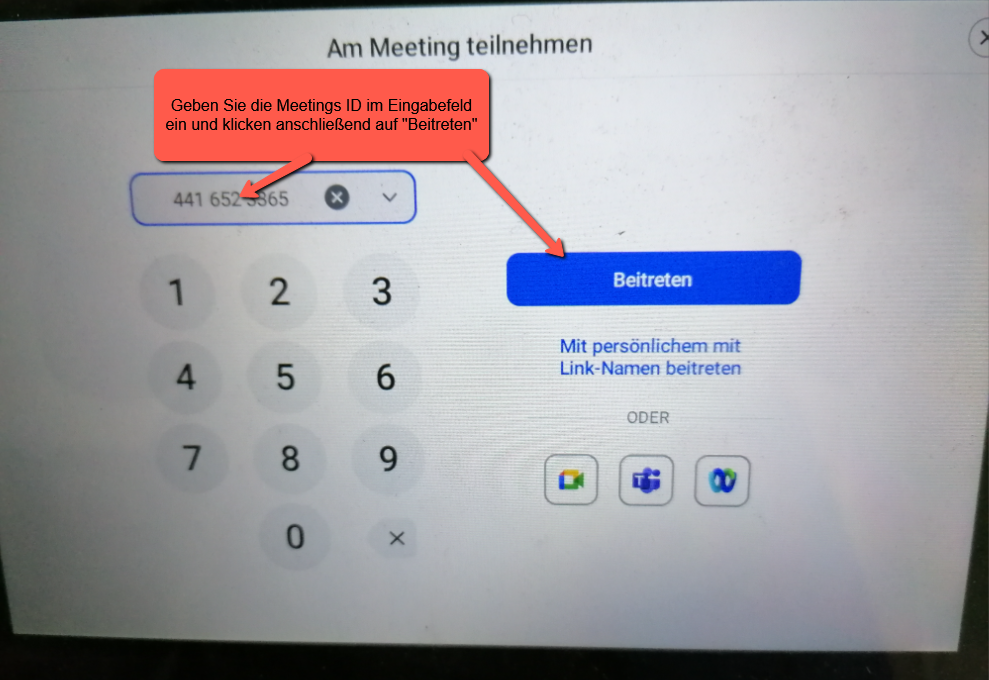
Oder Sie können Sich mittels der Meetings ID und dem dazugehörigen Passwort in das Meeting einwählen.
In order to be able to dial into a meeting, either select the person (s) directly from the company directory displayed on the picture.
Or you can dial into the meeting using the Meetings ID and the associated password.